
Export Guide#
This page explains how to package Godot-FmodPlayer and the FMOD runtime libraries when exporting a Godot project. If you have not installed the plugin yet, read Installation Guide first.
Before Exporting#
Check Plugin Files#
Before exporting, the project should contain the addons/fmod_player plugin directory. A Windows project usually needs at least:
res://
└── addons/
    └── fmod_player/
        ├── plugin.cfg
        ├── fmod_check.gd
        ├── fmod_player_main.gd
        └── bin/
            ├── fmod_player.gdextension
            ├── fmod.dll
            ├── fmod_player.windows.template_debug.x86_64.dll
            ├── fmod_player.windows.template_release.x86_64.dll
            └── icons/
Important
The FMOD runtime libraries are not distributed with the plugin. Download FMOD Engine yourself from the FMOD download page and copy the matching runtime libraries for your target platform.
Check the GDExtension Configuration#
The plugin currently supports Windows x86_64 and Android arm64 by default. addons/fmod_player/bin/fmod_player.gdextension should contain configuration similar to:
[configuration]
entry_symbol = "fmod_player_init"
compatibility_minimum = "4.1"
reloadable = true

[libraries]
windows.debug.x86_64 = "fmod_player.windows.template_debug.x86_64.dll"
windows.release.x86_64 = "fmod_player.windows.template_release.x86_64.dll"
android.debug.arm64 = "libfmod_player.android.template_debug.arm64.so"
android.release.arm64 = "libfmod_player.android.template_release.arm64.so"

[dependencies]
windows.debug.x86_64 = { "fmod.dll" : "" }
windows.release.x86_64 = { "fmod.dll" : "" }
If you changed binary filenames, platforms, or architectures, update this file accordingly.
Godot Export Presets#
Open Project > Export.
Create or select an export preset for the target platform.
In the Resources tab, make sure
addons/fmod_player/and your audio resources are included.For Android, enable the Gradle build and install the Android build template.
Windows Export#
Required Files#
A Windows x86_64 release build requires:
addons/fmod_player/bin/fmod_player.gdextensionaddons/fmod_player/bin/fmod_player.windows.template_release.x86_64.dlladdons/fmod_player/bin/fmod.dllAny audio resources used by the project.
Note
Use fmod.dll for release builds. fmodL.dll is FMOD’s logging/debug version and is usually not used for official releases. The plugin’s default Windows dependency configuration looks for fmod.dll.
Export Recommendations#
Setting |
Recommendation |
|---|---|
Architecture |
|
Export template |
Use the release template for official releases. |
Embed PCK |
Choose according to your project’s release method. |
First validation |
Export to an empty directory first, so missing files are easier to find. |
Post-export Check#
Run the exported .exe and confirm that:
The game starts normally.
There are no GDExtension loading errors.
Audio can play.
The console or log does not report a missing
fmod.dll.
Android Export#
Android has one extra step compared with Windows: in addition to the plugin’s own libfmod_player library, you must place FMOD’s libfmod.so and fmod.jar into the Android build template.
Prepare Files#
Prepare the following files:
addons/fmod_player/bin/libfmod_player.android.template_release.arm64.solibfmod.sofrom the FMOD Engine Android package.fmod.jarfrom the FMOD Engine Android package.
See also
Exporting for Android explains how to prepare Android exports.
Install the Android Build Template#
In Godot, run Project > Install Android Build Template.
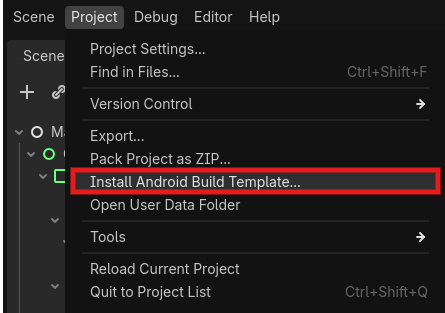
After installation, res://android/build/ directory will appear in the project.
Copy Runtime Libraries#
Copy the Android arm64 runtime libraries into the Gradle project’s library directory. The directory can be organized according to project needs, but it should be ensured that the final APK/AAB contains the corresponding ABI .so files.
Common layout is:
res://android/build/libs/
├── debug/
│   ├── arm64-v8a/
│   │   ├── libfmod.so
│   │   └── libfmod_player.android.template_debug.arm64.so
└── release/
    └── arm64-v8a/
        ├── libfmod.so
        └── libfmod_player.android.template_release.arm64.so
The actual directory may change depending on the Godot version and template structure. The key point is that the ABI must match arm64-v8a in the export preset.
Add fmod.jar#
Place fmod.jar at:
res://android/build/libs/fmod.jar
Then add this to dependencies in res://android/build/build.gradle:
dependencies {
    implementation files("libs/fmod.jar")
}
Load the FMOD Library#
Load the FMOD runtime library in the Android startup code. Usually this is done in GodotApp.java inside onCreate:
@Override
public void onCreate(Bundle savedInstanceState) {
    System.loadLibrary("fmod");
    super.onCreate(savedInstanceState);
}
Note
If you use the FMOD debug library, the library name may be fmodL. Release builds usually use fmod. Do not load both fmod and fmodL in the same release build.
Export Settings#
Select
arm64-v8ain the Android export preset.Enable Gradle Build.
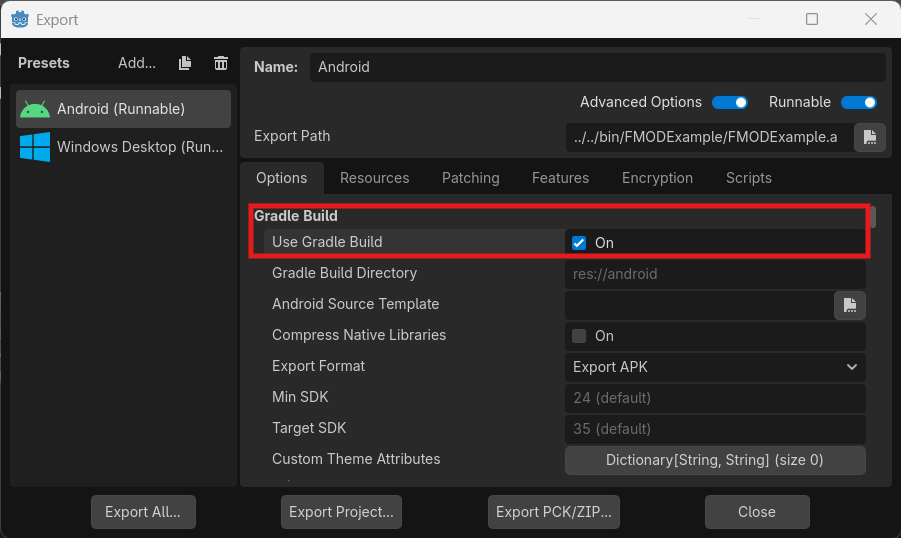
Export an APK or AAB.
Test audio playback on a real device. Do not rely only on editor or emulator results.
Build Release Libraries from Source#
If you modified the plugin C++ source code, rebuild the platform binaries.
Windows release:
scons platform=windows target=template_release arch=x86_64
Android release:
scons platform=android target=template_release arch=arm64
After building, copy the generated binaries into addons/fmod_player/bin/ and make sure the filenames match fmod_player.gdextension.
Export Troubleshooting#
Common Windows Issues#
The exported game fails to start or reports that GDExtension cannot be found
Make sure
fmod_player.gdextensionis included in the export package.Make sure the release version of
fmod_player.windows.template_release.x86_64.dllexists.Make sure the export architecture is
x86_64.Make sure the Godot version is not older than the plugin’s required
4.1.
fmod.dll cannot be found
Make sure
addons/fmod_player/bin/fmod.dllexists.Make sure you are using the Windows x86_64 FMOD Core runtime library.
Try placing
fmod.dllnext to the exported executable to rule out runtime search path issues.
Common Android Issues#
Crash after startup
Make sure
libfmod.sois packaged into the APK/AAB.Make sure the ABI is
arm64-v8aand matcheslibfmod_player.android.template_release.arm64.so.Make sure the startup code calls
System.loadLibrary("fmod").Use Logcat to inspect the original error.
No sound after export
Make sure audio resources are included in the export package.
Prefer
res://paths and do not rely on absolute paths from the development machine.Check FMOD initialization logs and Godot output.
Viewing Logs#
On Windows, use the Godot console, the editor Output panel, or start the exported program from the command line to view logs.
On Android, use:
adb logcat -s godot
adb logcat | grep FMOD
Pre-release Checklist#
Windows#
fmod_player.gdextensionis included.fmod_player.windows.template_release.x86_64.dllis included.fmod.dllis included.All audio resources are included.
The exported build runs and plays audio from an empty directory.
Android#
The Android export preset enables
arm64-v8a.Gradle Build is enabled.
libfmod_player.android.template_release.arm64.sois included.libfmod.sois packaged in the correct ABI directory.fmod.jarhas been added as a Gradle dependency.The startup code loads the FMOD runtime library.
Playback has been tested on a real device.
Performance Tips#
Prefer
MODE_STREAMfor background music and longer audio.Prefer
MODE_SAMPLEfor short sound effects and frequently triggered sounds.On mobile platforms, use many real-time DSP effects carefully; prefer sharing effects on buses.
Control the number of channels playing at the same time and avoid unnecessary overlapping playback.
Before release, observe the
FmodCPUUsageandFmodFileUsagemonitors on the target device.
License and Attribution#
The Godot-FmodPlayer plugin itself uses the MIT license. FMOD Engine is proprietary software by Firelight Technologies Pty Ltd, and its use and distribution must comply with the official FMOD license terms.
Before release, read:
Important
FMOD licensing, pricing, and attribution requirements may change. This page only explains Godot-FmodPlayer export configuration and does not replace the official FMOD license text.